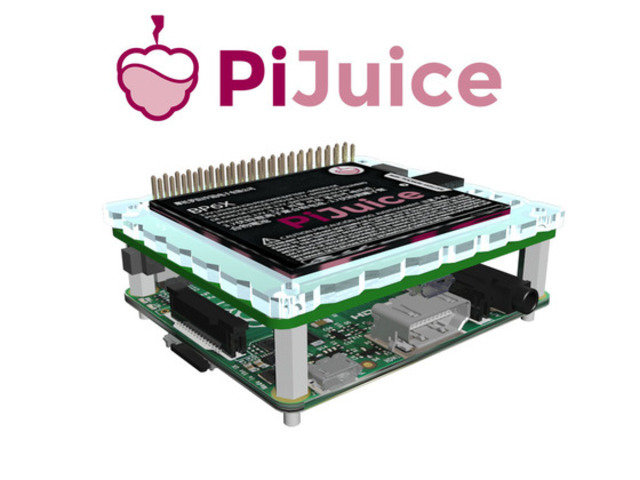
PiJuice - A Portable Project Platform For Every Raspberry Pi
Created by PiJuice Team
PiJuice is the ultimate module for all portable Raspberry Pi projects. Includes many fun maker projects and a solar power version too!
Latest Updates from Our Project:
First units due off line shortly, and testing rig...
over 8 years ago
– Thu, Aug 17, 2017 at 02:53:46 PM
Hi all,
We promised an update a few days ago - sorry it took a bit longer than we thought...it has been a bit of a hectic couple of weeks here at Pi Supply HQ...but here it is.
Production update
We received a notification from our manufacturer, Embest (a division of Farnell), on Thursday last week that the first production units are due off the line in around 3 weeks...by the end of August.
Whilst this doesn't mean that the units will begin shipping at end of August, it means that we will have the first working, production quality units coming off the line. We will then begin the ramp up of production and testing/packaging for the full batch of 5k units, performing QA tests all the way through to make sure the quality of each board is up to standard and meets that of these first samples and the important design parameters.
As soon as those arrive with us we will send you a bunch of pictures etc :-)
Testing rig - testing PiJuices with Raspberry Pis
As we know a lot of you take a keen interest in the more technical side of the process, we thought it might be cool to share with you our test rig setup, that we have custom made for the PiJuice.
PiJuice Test Rig Top
PiJuice Test Rig Top - no PiJuice attached
PiJuice Test Rig Connected to Pi
PiJuice Test Software
The test rig board is heavily influenced by the fantastic Black HAT Hack3r from Pimoroni (we actually use the Black HAT Hack3r for testing and programming some of our JustBoom audio boards - but it is a less involved test than for PiJuice) but with some PiJuice specific customisations that make it a little tidier for the production line.
As you can see from the photos, the board is a 2.4mm thick PCB (for extra strength/weight and to make it more secure and less flexible when screwed down to a test bench) and has got on it 2 x 40 pin headers, a calibration resistor to calibrate the battery charge chip and a toggle switch to toggle the calibration resistor on and off.
The large, randomly aligned, plated holes on the board are for spring pins / pogo pins to be inserted, which is just another way of programming/testing it rather than doing it through the 40 pin GPIO header. In a production environment this can sometimes be quicker but in this instance the factory preferred the 40 pin header setup so we are using that and not the spring pins.
On the bottom edge there are some debug / test headers that allow you to perform tests without a Pi. You will also see two boxes between the 2 x 40pin headers with some contacts and non-plated large holes. Those are basically in-circuit programming headers that allow you to interface with the ingenious programming cables from Tag Connect. If you look at some pictures of the PiJuice without the battery on board, you will notice the same two headers on the PiJuice itself. It is basically a cost and space efficient way to add a programming header onto the boards. The ones on the test rig are unlikely to be used much, but if the test fails and it is due to a chip that hasn't been properly programmed during manufacture then this is a quick and easy way to reprogram it in place.
The last picture shows the custom test software we devised for the testing process which basically just runs an automated test to ensure everything is working correctly, and also allows you to callibrate the battery charge level chip to the specific battery with your PiJuice. It is pretty sparse, but that is the idea - to keep it nice and simple for the operator in the factory to avoid any human error!
Last but not least, in the first picture you will actually see the first injection moulded battery surround produced by CamdenBoss. They are a very good fit and we couldn't be more pleased with the quality and accuracy - far better than the laser cut parts we were using before. Those are rolling out of the factory as we speak and will soon be complete.
More?
That is about all on the test rig, and we look forward to sharing more info with you soon as well as hopefully some pictures/videos of the PiJuice boards in production also and hopefully some of the injection moulding process too (we are trying to persuade CamdenBoss and Embest to shoot some footage for us!).
Until then...
Thanks as always, Aaron and the PiJuice team
New IP65 Case Concepts from CamdenBoss
almost 9 years ago
– Sat, Jul 01, 2017 at 01:27:19 AM
Hi all,
From the very beginning, the point in PiJuice was to allow you to use your PiAnywhere. One of the stretch goals we mentioned during the campaign, to allow for that goal, was a weatherproof (or if possible, waterproof) project case for your Pi. As you may remember, a long time ago (update 10) we provided some concept art for this by MindSketch. Unfortunately, whilst it was good work, they were not injection moulding experts and it was really nothing more than concepts.
Having said that, after many successful projects with the lovely folks at CamdenBoss (including the PiJuice battery surround) we have recently tasked them with this design, with a view to releasing something in the future. They make a lot of accessories (both injection moulded and other techniques such as FSPT etc) for the Raspberry Pi for Farnell as well as stuff for CodeBug and MicroBit - so they are tried and tested.
It is by no means a priority for us, but this week CamdenBoss surprised us with some concept art of their own for this case and we have to say we are pretty impressed:
Front of case
Back of case
Open case
Open case with tray out
Back of case with optional push-out gland hole
Back of case with optional gland installed
We are hoping to have another update soon relating to production of the PiJuice modules themselves, but are not entirely sure when.
As soon as we have more we will share it.
Thanks, Aaron and the Pi Supply team
Package repo - well that was easier than we thought!
almost 9 years ago
– Thu, Jun 15, 2017 at 12:45:57 AM
Hi all,
Just a quick one to say that we have now got the PiJuice software package in the official Raspbian package repo.
sudo apt-get install pijuice
You can get this for yourself by opening a terminal window on your Raspberry Pi and running:
You can then find the PiJuice software in the menu under Menu -> Preference -> PiJuice Configuration. You will of course get a "CONNECTION_ERROR" as you won't have a PiJuice attached but you should get a feel for the software.
Questions about software
Some people were asking some questions on the comments on the last update about certain features of the software, so here are a few answers for you:
The default battery profile is defined by the hardware dip switch position on the PiJuice. On the Kickstarter units, this will be position 01 for BP7X, however you can change the default setting by altering the DIP switch.
It is not possible to detect battery not present when powered through on board usb micro, so it might show 0% only.
User functions are 4 digit binary coded and have 15 combinations, code 0 is USER_EVENT which means that it will not be processed by system task, but left to user and python API to manage it. We thought it will be a rare case that all 15 will be needed so on GUI there is 8 (it will make the window very big also to have 15). However if someone needs more scripts it can be manualy added by editing the config json file: /var/lib/pijuice/pijuice_config.JSON. Also all other configurations can be managed manually in this file if GUI is not available.
If you want to dig through the code, or leave any feedback, you can do so on GitHub here - https://github.com/PiSupply/PiJuice
Thanks, Aaron and the PiJuice team
Software and firmware complete!
almost 9 years ago
– Wed, Jun 07, 2017 at 11:27:41 PM
Hey backers,
Great news for you this week - as promised in our previous update with the icons last week we have now finished the first release of the Firmware and Software for PiJuice. This update goes into more detail about how it works and the various features and menus. The whole point in the PiJuice is to enable more projects more easily that are off the grid - we want you to be able to use your PiAnywhere - so we are also really keen to get your feedback on it and in the future your help with improving it and helping us to build a roadmap of useful features! We are thinking of various ways to do that, but perhaps most likely will be through GitHub and some surveys.
PiJuice Software Demo Video
For those of you who don't like reading / scrolling through lots of text and images, we have made a little video for you to show you around:
More info about the software and closeups
We have also taken a LOT of screenshots of all the different menu options etc to show you the full software. So lets get stuck in:
Raspberry Pi Menu Entry for PiJuice Configuration Software
As said in the above video, we have compiled the source code into a .deb Debian package file so it is super easy to install (instructions on how on the GitHub page linked below). Eventually, we will get this included in the official Raspbian package repositories so you will be able to install it very easily using the command "sudo apt-get install pijuice" just like you do with other software! Once installation is complete the software appears in the system menu under Menu -> Preferences -> PiJuice Configuration as you can see in the above image.
System Tray
Once you load the software, you will see the PiJuice icon appear in the system tray, as above. This icon shows you the status of the PiJuice - charging from Pi, charging from PiJuice, running on battery as you have in a normal laptop computer. Additionally you can hover over it to tell you the charge level of the battery.
You can also right click on this icon to load the configuration menu, instead of having to go to the menu as in the previous image.
Main software menu, with no battery attached
This picture is how the PiJuice Configuration software looks when it loads up. This also shows some basic information about the battery charge, battery voltage, and where it is charging from....here is it showing 0% and a low voltage on the battery - because there is no battery installed! You can also see that it is charging from the Pi GPIO (meaning it is plugged in to the Pis microUSB) and it also shows the rail voltages and current draw over the GPIO pins. Below that is the PiJuice microUSB and as you can see in this screenshot that is not currently plugged in. There is a fault checker, a system switch state and also a link to a HAT config menu (more on that later! - see PiJuice HAT Configuration Menu screenshot).
Main software menu, with battery attached
This screenshot shows the same menu as in the previous screenshot, the only difference being there is now a battery installed in the PiJuice.
Wakeup Alarm Menu
In this screenshot we have moved over to the Wakeup alarm tab of the config menu and as you can see this is an area where you can set schedules for the Pi to automatically wake up. This is useful for remote monitoring applications.
This feature will only work if you are either plugged in to the PiJuice microUSB / running on battery. If the battery is low and you are plugged in via the Raspberry Pis GPIO the only way to enable this feature is by soldering the optional "spring pin" that comes with the PiJuice HAT.
System Task Menu
Here we have the system task menu tab. This enables you to set the external watchdog timer - useful for remote applications where you can't come and do a hard-reset yourself if the Pi crashes or hangs. The PiJuice essentially monitors for a "heart beat" from the software - if it does not sense it after a defined period of time it automatically resets the Raspberry Pi. You can also set here wakeup on charge levels, minimum battery levels and voltages.
System Events Menu
This is the system events menu tab. It allows you to trigger events for certain scenarios such as low charge, low voltage and more. Each paramater has a couple of preset options to choose from, and also you can select options from the "user scripts" tab which allows you to trigger your own custom scripts when certain system events occur for maximum flexibility.
User scripts menu
This is the user scripts menu tab as we mentioned in the above screenshot description where you can add paths to custom scripts that you can trigger on events.
PiJuice HAT General Config Menu
In the first config menu screenshot, we mentioned a button in the image that said "Configure HAT" - if you were to click on that button it would bring you to this PiJuice HAT general configuration menu. It allows you to configure a lot of hardware settings on the PiJuice HAT itself (as opposed to the previous menus which were actually configuring the software - hopefully that is not too confusing!)
This is the general tab, which allows you to select whether you have installed the spring pin / run pin and also the I2C addresses of the HAT and the RTC as well as changing the write protect on the eeprom and changing the actual physical I2C address of the eeprom. These eeprom features can be very useful if you want to stack another HAT on top of the PiJuice but still have that other HAT auto-configure itself.
PiJuice HAT Config Buttons Menu
Next we have the buttons menu - this configures the actions of the buttons on the PiJuice HAT (there are three surface mount buttons, one of which also has a 2 pin 2.54mm header so you can break out a button on a cable to the edge of a case or wherever you fancy).
There are a number of preset behaviours for the buttons - startup/shutdown etc and this menu also ties in to the "User Scripts" menu shown above meaning you can actually trigger your own custom scripts and events based on the press of one of these buttons very easily.
You can even trigger different events for a press, release, single press, double press and two lengths of long press - you can even configure the length of time these long presses would take before triggering the event. As you can see the first button is already configured for system power functionality and we would highly recommend that at least one of the buttons is configured to these settings or you may have issues turning your PiJuice on and off :-)
PiJuice HAT Config LEDs Menu
Perhaps our favourite options menu is the LEDs menu - as with the buttons we have made these super versatile. They can have standard functions as displayed above, they can have preset functions or you can define custom ways for them to behave.
Who doesn't love blinkenlights!
PiJuice HAT Config Battery Menu
The battery menu is a very important one. It basically allows you to set charge profiles for the PiJuice charge chip in order to correctly and efficiently charge the battery, correctly monitor the charge percentages and more. We have got a number of built in presets such as the ones that will come with the PiJuice by default (the BP7X) and all of the other ones we will supply. But as promised, there is also the ability to add your own custom charge profiles and even your own battery temperature sensor in order to increase the safety and efficiency of charging your batteries.
As previously mentioned, some of these are even hard coded into the firmware on the PiJuice which enables you to actually select profiles using the PiJuices on board DIP switch.
PiJuice HAT Config Firmware Menu
Last but very much not least is the firmware menu. This allows you to update the firmware on the PiJuice MCU chip as and when necessary meaning we can actively improve the firmware and any updates or improvements we make in the future can be retrospectively applied to all PiJuice HATs!
We hope that has provided a very thorough overview of the power of the PiJuice platform and are very excited to hear your feedback on what we have developed.
Take a look and get involved!
Last but not least, if you are inclined to poke around in the source code, the firmware and software are now available through our GitHub repository:
For the firmware, only the binary is there right now but we will be uploading the source for the firmware in due course, we just need to export it in the smallest possible way without taking a load of extra un-needed stuff with it from the IDE...and also provide instructions on how to flash it / compile it etc.
You can install the software now if you want to play around with it - although it won't do a lot without the PiJuice HAT itself. There are instructions on the GitHub.
Last but not least, when the time comes that the PiJuice HATs are shipping and starting to drop through your doors, we would be absolutely delighted to have the help of any willing volunteers with maintaining and updating the codebase. We always wanted PiJuice to be a collaborative effort to make portable power on the Raspberry Pi absolutely fantastic and we still have that goal in mind...we are now 2 years late with delivery but even in that time still nobody has solved this problem in the way that PiJuice set out to at the very beginning. We still feel this is a fantastic product and will open the door to new projects and new possibilities with the Raspberry Pi.
Today we have taken one big step closer to the finish line and we hope you are as excited as we are with this software!
Thanks as always, Aaron and the Pi Supply team
System tray icons for battery
almost 9 years ago
– Wed, May 24, 2017 at 07:47:05 PM
Hi all,
Just wanted to quickly share with you the battery icons for the system tray on the Raspberry Pi that we have developed. The ones with % charge shown will go up in increments of 10% as the Pi charges in various conditions. We have tried to cover pretty much every charging condition we could think of - to give you the data you need (both visual and programmatically) to really enable you to use your Raspberry PiAnywhere!
Here are the icons:
Battery power only, 90% charge
Battery charging from PiJuice microUSB, 90% charged
Battery charging from RasPi microUSB, 90% charged
Powered by PiJuice microUSB but battery not charging
Powered by RasPi microUSB but battery not charging
Battery error - PiJuice not found but software running